The Windows 10 Start Button Not Working issue can quickly make even the simplest tasks impossible. The Start button is an integral part of the Windows interface that provides access to programs, system settings, search, power management, and other vital functions. Its abrupt failure can severely impact one’s ability to use their computer.
Users who have suffered the consequences of the Windows 10 Start Button Not Working issue are not strangers to the frustration it brings. The cause of the malfunction can be anything from a minor software conflict or corrupted system files to a faulty Windows update or a damaged user profile. Although some cases may require advanced Windows knowledge to address, most do not necessitate a complete OS reinstallation.
This guide aims to explain the most common causes of the Windows 10 Start Button Not Working issue and provide working solutions for the majority of cases. Firstly, it is crucial to identify the reasons for the malfunction to determine the optimal solution. In the following sections, the most frequent causes of the error will be reviewed alongside the methods to eliminate them.
Why the Start Button Can Suddenly Stop Responding
The Start button is not a standalone component. The Start button’s functioning depends on various Windows processes and elements.
A Start button malfunction can occur due to the following reasons:
- Windows system files corruption
- Windows update issues
- User profile malfunctions
- Widows explorer malfunction
- Start menu database corruption
- Conflicting third-party software
- Failure of system services to start
- Registry problems.
Therefore, it is essential to identify the exact cause of the malfunction in order to avoid unnecessary troubleshooting steps.
Recognizing Different Types of Start Button Problems
Not every Start menu issue behaves the same way.
Here are several common scenarios:
| Symptom | Likely Cause |
| Nothing happens when clicking Start | Explorer or Start process failure |
| Start menu opens then closes | Corrupted Start menu data |
| Start button responds slowly | High system resource usage |
| Search doesn’t work | Windows Search service issue |
| Taskbar also freezes | Explorer crash |
| Start menu works in Safe Mode | Third-party software conflict |
Identifying the behavior often points toward the most effective solution.
Start with the Simplest Fixes
Before making advanced system changes, try basic troubleshooting.
Many temporary glitches disappear after restarting important Windows processes.
Restart Windows Explorer
Windows Explorer manages the desktop, taskbar, and Start menu, making it an essential part of the Windows interface. Knowing how to restart Windows Explorer can quickly resolve many common taskbar and Start menu issues.
To restart it:
- Use the Ctrl + Shift + Esc keyboard shortcut to open Task Manager.
- Find Windows Explorer.
- Right-click it.
- Select Restart.
The screen may briefly flicker while Windows reloads the desktop.
This simple step frequently restores Start menu functionality.
Restart the Computer Properly
- If restarting Explorer does not help, try turning off the PC rather than putting it to sleep or hibernation.
- It may help to perform a full shut down as opposed to utilizing the hibernate or sleep function.
- It will refresh the memory and Windows services that make up the start menu.
Check Whether Updates of Windows Are at Fault
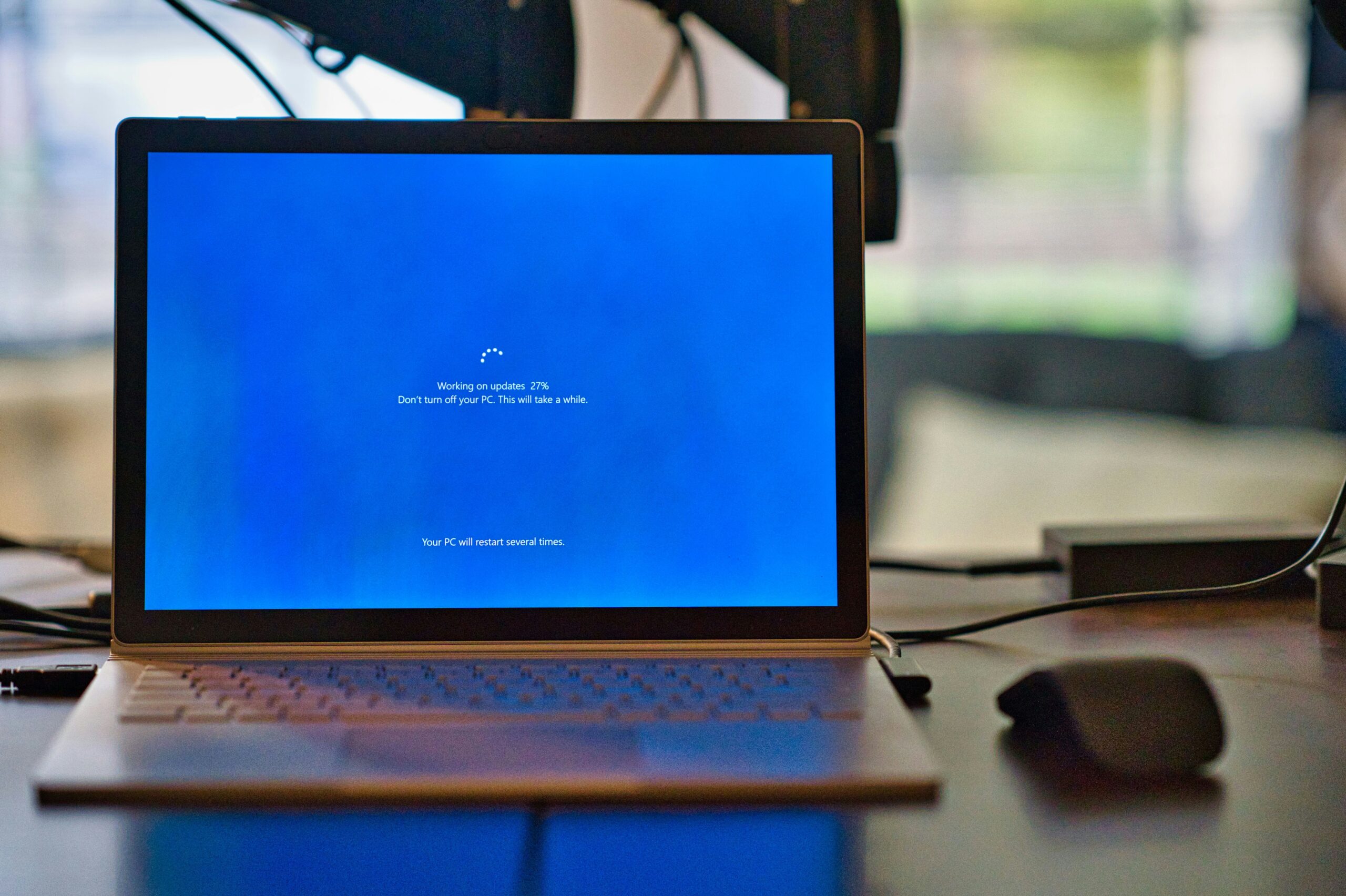
The updates to Windows can cause both stability and security issues, which can cause the start button to stop working.
If the start menu button only started malfunctioning after you installed an update, it is possible that the problem lies within the update itself.
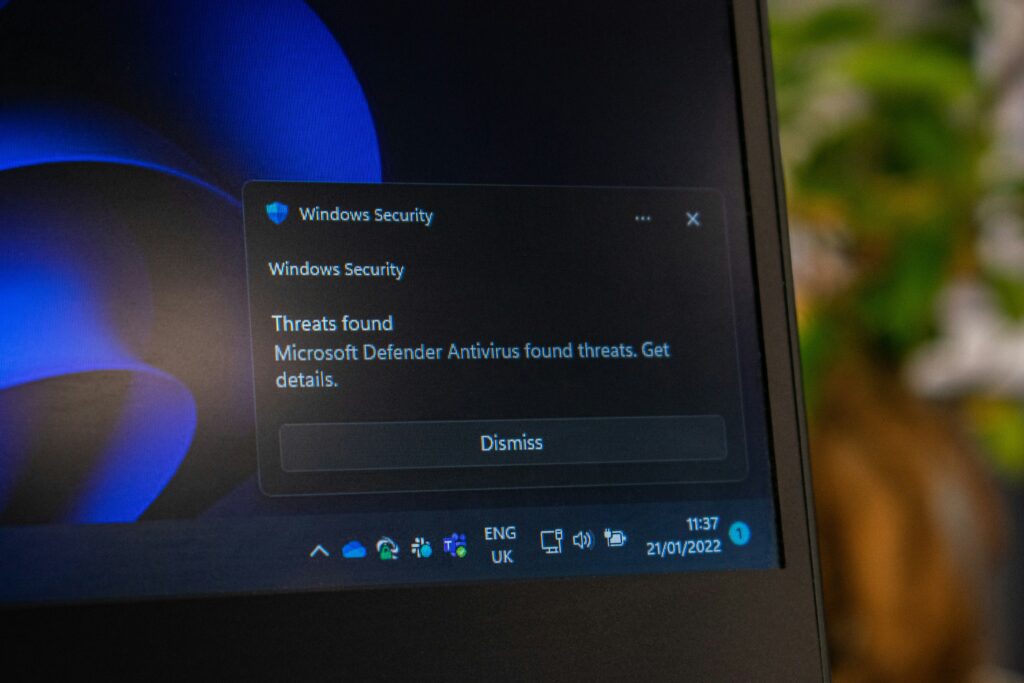
There are several ways to remedy this issue, including:
- installing newer cumulative updates that may contain fixes
- rebooting your computer several times if it is still installing updates
- removing any recently installed updates if they are causing the issue.
Microsoft typically releases security patches and other fixes for the Windows OS that can help resolve any issues you might be experiencing.
Run Built-In System Repair Tools
When Windows files become corrupted, repairing them often restores the Start button.
System File Checker
- Launch Command Prompt as administrator and type the following command:
- sfc /scannow
- System File Checker is a utility that scans all protected operating system files and replaces incorrect ones with their original versions.
- After the process is complete, reboot your computer.
DISM Repair
If the error persists, most likely, SFC was unable to repair some system files. In this case, use DISM to do that:
- DISM /Online /Cleanup-Image /RestoreHealth
- DISM performs a repair of the Windows component store so that SFC can successfully complete its task.
- Many problems with the Start menu are fixed by these two steps.
Check for User Profile Problems
In some cases, the Windows 10 Start Button Not Working issue may be caused not by the malfunction of the operating system, but the corrupted user profile. The easiest way to check it is to log in as a local user on your PC. If everything works fine in the Start Menu, your profile is most probably the reason why you are unable to open apps. And instead of trying to figure out how to fix a profile in Windows 10, it might be faster and more efficient to simply transfer all data to the new account.
Restart Important Windows Services
Several Windows services contribute to Start menu functionality.
Examples include:
- User Manager
- Windows Search
- State Repository Service
- App Readiness
If one of these services fails to start correctly, Start menu behavior may become unpredictable.
Restarting the affected service can restore normal operation.
Use PowerShell to Re-register Windows Apps
Get-AppXPackage -AllUsers | Foreach {
Add-AppxPackage -DisableDevelopmentMode -Register “$($_.InstallLocation)\AppXManifest.xml”
}
Safe Mode Can Reveal Software Conflicts
Safe Mode loads Windows with only essential drivers and services.
If the Start button works correctly in Safe Mode, a third-party application is likely interfering.
Programs commonly associated with Start menu conflicts include:
- Desktop customization tools
- Antivirus software
- Taskbar replacements
- Registry cleaners
- Shell modification utilities
Disable recently installed software one at a time until the problem disappears.
Check Event Viewer for Hidden Clues
Many Windows errors are recorded automatically.
Event Viewer can reveal:
- Explorer crashes
- Application failures
- Service startup problems
- Windows Shell errors
Although the logs can appear technical, repeated errors involving Explorer or ShellExperienceHost often indicate where troubleshooting should focus.
Practical Repair Workflow
Rather than trying random fixes, follow a logical sequence.
| Step | Action |
| 1 | Restart Windows Explorer |
| 2 | Restart the computer |
| 3 | Install pending Windows updates |
| 4 | Run SFC |
| 5 | Run DISM |
| 6 | Test with another user profile |
| 7 | Re-register Windows apps |
| 8 | Boot into Safe Mode |
| 9 | Remove conflicting software |
| 10 | Consider system restore if needed |
Following this order avoids unnecessary changes while addressing the most common causes first.
When System Restore Is the Better Choice
If the problem appeared recently and you have System Restore enabled, restoring Windows to an earlier point can save considerable time. Learning how Windows System Restore works also helps you understand when reverting recent system changes is the quickest solution.
System Restore:
- Preserves personal files
- Removes recent system changes
- Reverts problematic drivers
- Restores registry settings
It is particularly useful after failed updates or software installations.
Common Mistakes That Make the Problem Worse
Many users tend to greatly complicate the repair process.
Make sure to avoid the following destructive mistakes:
Installing Various Registry Fixes
Some sites suggest downloading numerous registry tweaks. This may lead to more issues than before, resulting in a more challenging repair process. It is better to avoid using third-party registry cleaners and instead utilize the built-in Windows utilities.
Do Not Rely on Numerous PC Repair Tools
Various PC repair tools guarantee to fix all issues with one click of a button. However, in most cases, they are practically useless. Whenever possible, always attempt to use the built-in Windows repair tools.
Check The Hard Drive/SSD
A faulty storage unit may corrupt Windows system files. This can cause the Start menu to malfunction. If the issue occurs constantly, double-check the health of the storage unit with the help of SMART tools.
Do Not Cancel Any Repair Process Manually
DISM and SFC are the core repair utilities in Windows. The scan and repair process can take a long time, so it is better not to interrupt the repair process.
Preventing Future Start Menu Problems
Although I think that every Windows installation is vulnerable to errors, there are some things that can prevent certain issues.
First of all, I would say that the best way to avoid problems is to install updates regularly provided by Microsoft, rather than skipping them.
I would also recommend not to use registry cleaners that make unnecessary changes to your system.
Besides, you should always leave some free space on your computer’s disks, so it can store system files and updates properly
Furthermore, it is essential to create a restore point before doing any significant changes to the system, such as updating drivers or programs. And, finally, I think that it is a good idea to back up the system so that it can be restored if something goes wrong.
Real-World Example
Consider an office computer where employees report that clicking the Start button has no effect.
Initial troubleshooting confirms:
- Mouse functions normally.
- Keyboard shortcuts still work.
- Taskbar icons respond correctly.
The described method of restarting Windows Explorer is only a temporary solution because after restarting the computer, the Start menu is closed again.
First, I decided to use the “SFC” utility to scan the system files for errors. It turned out that some of them were corrupted beyond repair.
Then I tried to fix the problem using the “DISM” utility. With its help, I managed to repair the damaged components in the system. After that, I ran the “SFC” utility once again, and the Start menu began to work correctly.
The example I demonstrated can serve as a model for solving the given problem since it shows how to fix the error without being forced to reinstall the entire operating system.
When a Windows Reset Becomes Necessary
If every troubleshooting method fails, Windows itself may have suffered significant corruption.
A Windows Reset can reinstall system files while allowing you to keep personal data if you choose the appropriate option.
Consider a reset only after:
- SFC fails repeatedly
- DISM cannot repair corruption
- New user accounts experience the same issue
- Safe Mode does not resolve the problem
- System Restore is unavailable
Although more time-consuming, a reset often resolves persistent software corruption.
Frequently Asked Questions
Why is my Windows 10 Start button not working?
The most common causes include corrupted system files, Windows Explorer crashes, damaged user profiles, software conflicts, or incomplete Windows updates.
Can Windows updates break the Start menu?
Occasionally, yes. While updates generally improve stability, certain releases have introduced temporary Start menu issues that were later corrected by Microsoft.
Is restarting Windows Explorer safe?
Yes. Restarting Windows Explorer simply reloads the desktop environment and does not affect personal files.
Should I use SFC or DISM first?
A common recommendation is to run SFC first. If it cannot repair corrupted files, run DISM, then execute SFC again for the best results.
Will resetting Windows delete my files?
If you choose the “Keep my files” option during Windows Reset, personal documents remain intact. However, installed applications will need to be reinstalled.
Can third-party software cause Start menu problems?
Yes. Antivirus programs, shell customization tools, taskbar modifications, and registry cleaners have all been known to interfere with Start menu functionality.
Final Thoughts
Dealing with the Windows 10 Start Button Not Working issue may be challenging since the start menu is an integral part of most PC operations. However, in most instances, the problem can be resolved without reinstalling the operating system. Common solutions include restarting the Windows explorer process, repairing system files with SFC and DISM tools, and removing application conflicts.
It is essential to note that the best approach to fixing the Windows 10 start button not working is to undertake the troubleshooting procedures systematically. It is advisable to begin with the solutions whose implementation is straightforward and least disruptive to the computer’s processes.
Following the outlined solutions above, one should be able to fix the Windows 10 start button not working issue without losing valuable data by reinstalling the operating system. Explore our Windows troubleshooting and repair guides for more practical solutions to common Windows errors, performance issues, and system maintenance. One should also remember to update their PC and leave enough space for operating system updates to prevent similar issues from arising.