The Windows + Shift + S keyboard shortcut has become one of the easiest and fastest ways to make screenshots in the modern Windows operating system. It allows you to capture a selected region, window, or the whole screen with just a few keystrokes instead of opening the entire Snipping Tool.
It can be especially frustrating when the Windows + Shift + S screenshot shortcut suddenly stops working just when you need to capture something quickly.The Windows Shift S not working error can occur in different scenarios – after updating the operating system, restarting the computer, or simply changing some keyboard settings. Sometimes nothing happens when you press these three keys, while in other cases, the screen goes dark for a moment and nothing appears on the screen.
The good news is that the Windows Shift S error is typically caused by software problems, so you do not have to worry about expensive hardware repairs. In most cases, it is possible to fix the problem without reinstalling Windows. The following guide covers potential reasons why the Windows Shift S shortcut stop working and provides detailed instructions on how to fix it.
Why This Shortcut Sometimes Stops Working
The Windows + Shift + S Shortcut requires various elements of the Windows OS to operate correctly.
A keyboard shortcut triggers the system’s background processes, such as services, shortcuts, notifications, and clipboard. It means that the Windows + Shift + S shortcut stop working if one of these elements is damaged or disabled.
There are multiple reasons why the Windows + Shift + S shortcut might stop working, including:
- Occurring system glitch
- Corrupted Snipping Tool
- Disabled clipboard history
- Outdated operating system
- Conflicting keyboard shortcuts
- Background applications
- Damaged system files
- Notification center issues
It is essential to highlight that knowing which element caused the issue can help in resolving it faster.
Signs That Help Identify the Problem
Not every screenshot issue has the same cause.
The following symptoms often point toward different underlying problems.
| Symptom | Possible Cause |
| Nothing happens after pressing Windows + Shift + S | Shortcut disabled or Snipping Tool issue |
| Screen darkens but no toolbar appears | Snipping Tool malfunction |
| Screenshot captures but isn’t copied | Clipboard issue |
| Shortcut works occasionally | Software conflict |
| Only one keyboard fails | Hardware or driver issue |
| Shortcut stopped after Windows Update | Update-related bug |
Recognizing these differences helps narrow down the correct solution.
First Things to Check Before Troubleshooting
Before changing system settings, verify a few simple things.
Test your Windows key separately by opening the Start menu.
Try the Shift keys individually.
Open another shortcut such as:
- Windows + E
- Windows + R
- Ctrl + Shift + Esc
If multiple shortcuts fail, the problem may be related to the keyboard rather than the Snipping Tool itself.
Fixing the Windows Shift S Not Working Issue
Once you’ve confirmed the keyboard is functioning properly, work through the following solutions in order.
Starting with the simplest fixes often saves the most time.
Restart the Snipping Tool
- Like any application, the Snipping Tool can occasionally become unresponsive. Learning how to use the Snipping Tool also helps you understand its built-in features and troubleshoot common screenshot problems more effectively.
- Close it completely through Task Manager if it is running.
- Then reopen it from the Start menu and test the shortcut again.
- A fresh launch often resolves temporary software glitches.
Restart Windows Explorer
Windows Explorer controls several interface components that interact with the screenshot overlay.
To restart it:
- Press the Ctrl + Shift + Esc keys together to open Task Manager.
- Locate Windows Explorer.
- Right-click it.
- Select Restart.
Your taskbar and desktop may briefly disappear before reloading.
Afterward, try using the shortcut again.
Check Clipboard History
Captured screenshots are normally copied to the Windows clipboard. Understanding Windows clipboard history can help you manage copied screenshots and resolve issues where captures appear to disappear.
If clipboard history is disabled or malfunctioning, screenshots may appear to fail.
Open:
Settings → System → Clipboard
Make sure Clipboard History is enabled.
Although the shortcut can still function without it, enabling clipboard history often improves reliability.
Reset the Snipping Tool
Windows allows built-in apps to be repaired without reinstalling the operating system.
Go to:
Navigate to Settings > Apps > Installed Apps, then open the Snipping Tool settings.
Choose:
- Repair
- If necessary, Reset
Repair attempts to fix the application while preserving settings.
Reset restores the application to its default state.
Install Pending Windows Updates
Microsoft regularly fixes bugs affecting Windows shortcuts and built-in applications.
Check:
Settings → Windows Update
- Install any available updates.
- Restart the computer before testing the shortcut again.
- A more recent cumulative update may already contain a fix for the problem. .
Repair Windows System Files
- Corrupted Windows files can interfere with keyboard shortcuts and system applications.
- Run System File Checker:
- sfc /scannow
- If corruption remains, follow it with:
- DISM /Online /Cleanup-Image /RestoreHealth
- After both commands finish, restart Windows.
Check Whether Another Application Is Capturing the Shortcut
Certain third-party applications register global keyboard shortcuts.
Examples include:
- Screen recording software
- Gaming overlays
- Keyboard customization tools
- Productivity utilities
- Remote desktop software
If another application has taken control of Windows + Shift + S, Windows may never receive the shortcut.
Temporarily closing these applications helps determine whether one of them is causing the conflict.
Verify Keyboard Functionality
The problem isn’t always software.
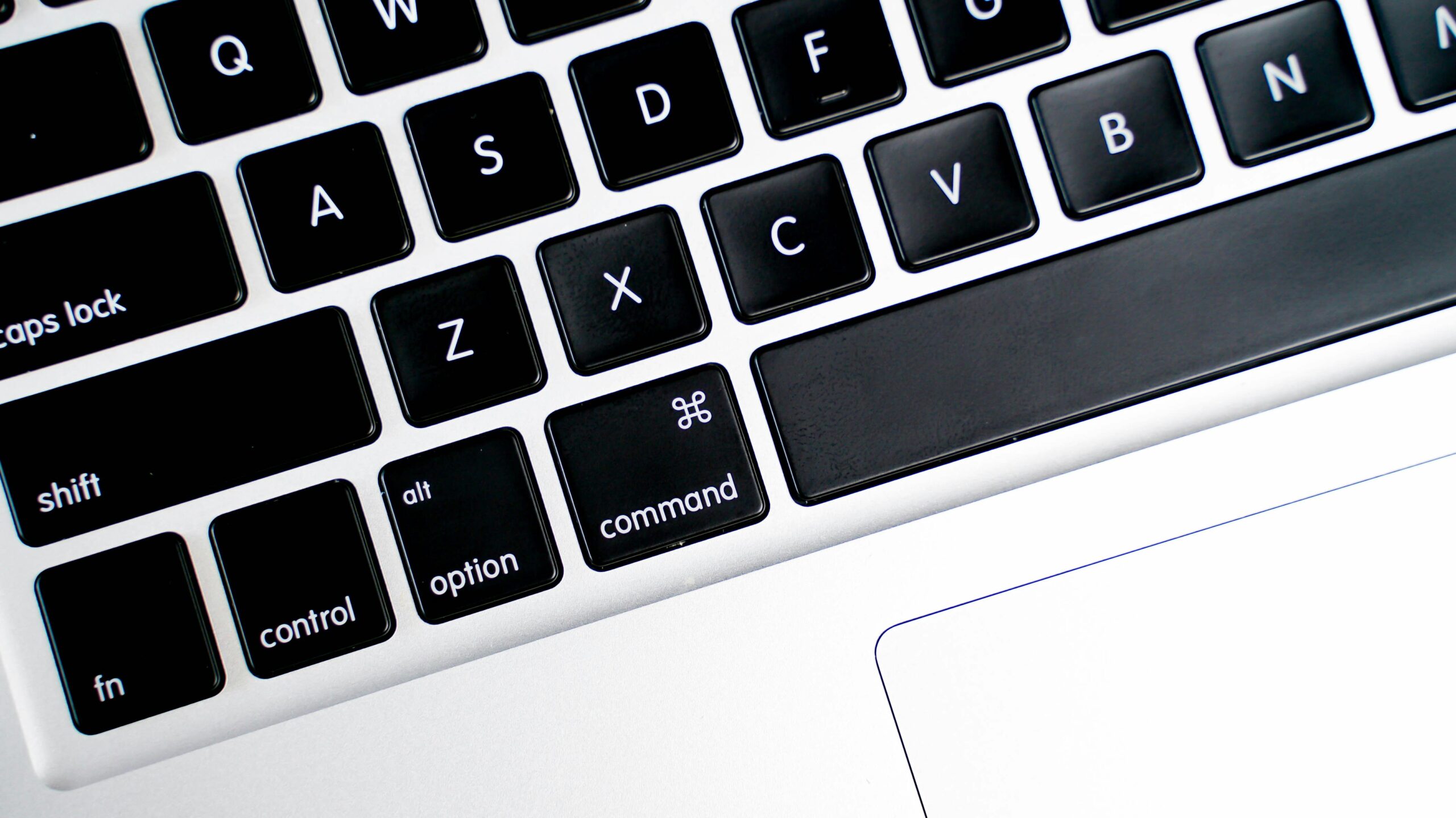
A faulty Windows key or Shift key can prevent the shortcut from working.
Simple tests include:
- Trying an external keyboard
- Testing the shortcut on another computer
- Using an online keyboard tester
- Checking for stuck keys
If another keyboard works correctly, the original keyboard may require cleaning, repair, or replacement.
Professional Troubleshooting Approach
IT technicians generally avoid making random changes.
Instead, they isolate one variable at a time.
A typical troubleshooting sequence looks like this:
| Step | Action |
| 1 | Test keyboard shortcuts |
| 2 | Restart Snipping Tool |
| 3 | Restart Windows Explorer |
| 4 | Repair Snipping Tool |
| 5 | Install Windows updates |
| 6 | Run SFC |
| 7 | Run DISM |
| 8 | Disable third-party screenshot software |
| 9 | Test another keyboard |
| 10 | A fresh Windows user profile is worth trying if the problem persists after other troubleshooting steps |
This structured approach reduces unnecessary changes while identifying the root cause more efficiently.
When a New User Profile Solves the Problem
- Sometimes it is the case that Windows is fine, but the user profile is corrupt.
- The simplest way to test this is to create a brand new local account, and see if the shortcut works there.
- If it does, then it’s likely that your issue is specific to your user account, and migrating your files to the new account is easier than repairing your existing one.
Common Mistakes to Avoid
- Several various methods found on the Internet might make the situation only worse.
- Avoid downloading any unofficial registry cleaners promising to repair the issue right away.
- In addition, it is better not to trust “PC optimization” software selling keyboard shortcuts “removal” tools.
- Do not disable operating system services unless you know exactly what they are responsible for.
- And finally, do not experiment with multiple solutions at once – if the problem goes away, you will not be able to say for sure which of the attempted actions actually fixed it.
Real-World Example
Imagine a graphic designer who uses Windows + Shift + S dozens of times each day.
One morning, the shortcut suddenly stops responding.
- The keyboard functions normally.
- Windows updates are fully installed.
- Restarting Explorer has no effect.
- Repairing the Snipping Tool also fails.
After checking running applications, the designer discovers a newly installed screen recording utility has assigned the same shortcut.
Closing the application immediately restores the Windows shortcut.
This example shows why software conflicts are sometimes overlooked during troubleshooting.
Tips to Prevent Future Problems
- Although it may be impossible to prevent all software-related issues, one can make efforts to avoid some of them in the future.
- It is essential to keep the operating system up to date by allowing Microsoft to install updates
- it is advisable to refrain from using several screenshot utilities that share the same keyboard shortcuts,
- one should update the keyboard drivers if needed,
- it is necessary to leave some free space on the hard drive for updates and temporary files
- and
- it might be beneficial to restart the computer from time to time instead of leaving it in the sleep mode.
Frequently Asked Questions
Why is the Windows Shift S shortcut not responding?
The most common causes include a malfunctioning Snipping Tool, software conflicts, disabled clipboard features, outdated Windows updates, or corrupted system files.
Can Windows updates cause this problem?
Yes. Occasionally an update introduces temporary bugs, although Microsoft often resolves them in later cumulative updates.
Does resetting the Snipping Tool delete screenshots?
No. Resetting the application restores its default settings but does not remove screenshots you’ve already saved elsewhere.
Can another screenshot application block the shortcut?
Yes. Some screen capture and recording programs register global keyboard shortcuts that can override Windows + Shift + S.
Should I run SFC and DISM?
If basic troubleshooting doesn’t resolve the issue, running SFC followed by DISM is a safe and effective way to repair corrupted Windows system files.
Is this issue caused by a faulty keyboard?
Sometimes. If the Windows or Shift keys are physically damaged, the shortcut cannot function properly. Testing with another keyboard is an easy way to confirm whether hardware is the cause.
Final Thoughts
The Windows Shift S not working problem might disturb your daily life, especially if you use the screenshot shortcut frequently throughout the day. Luckily, most reasons for the issue are software-related, and you can easily restore the function by performing certain steps.
The solution should be found faster if you check your keyboard for problems first and then proceed with other software-specific issues. Explore our Windows troubleshooting guides for more practical solutions covering keyboard shortcuts, system errors, Windows updates, and built-in tools. In addition, repairing the Windows Snipping Tool, updating Windows, and repairing system files may resolve the problem. Thus, multiple solutions that do not require advanced technical skills or a PC reinstallation are available to deal with the Windows Shift S not working error.