Few computer issues are more frustrating than waiting several minutes for Windows to become fully usable. Whether you’re running Windows 10 or Windows 11, a sluggish boot process can disrupt your workflow and make even simple tasks feel time-consuming. If you’re searching for how to fix slow startup Windows, it’s important to know that a slow boot doesn’t automatically mean your computer needs replacing. Startup delays are often caused by unnecessary startup applications, outdated drivers, limited storage space, software conflicts, or inefficient system settings. Identifying the underlying cause is the first step toward restoring faster and more reliable startup performance.
The ability to work in a fast and responsive computing environment has a direct impact on productivity. Understanding how to fix slow startup Windows begins with identifying the underlying causes of delayed boot times and restoring the operating system to optimal performance. In many cases, startup issues can be resolved without investing in expensive hardware upgrades or seeking professional technical support. Rather than focusing on temporary fixes, this guide explores the underlying reasons Windows startup gradually becomes slower and explains proven strategies for identifying performance bottlenecks, optimizing the boot process, and maintaining a consistently fast and reliable system over time.
Why Startup Speed Matters More Than You Think
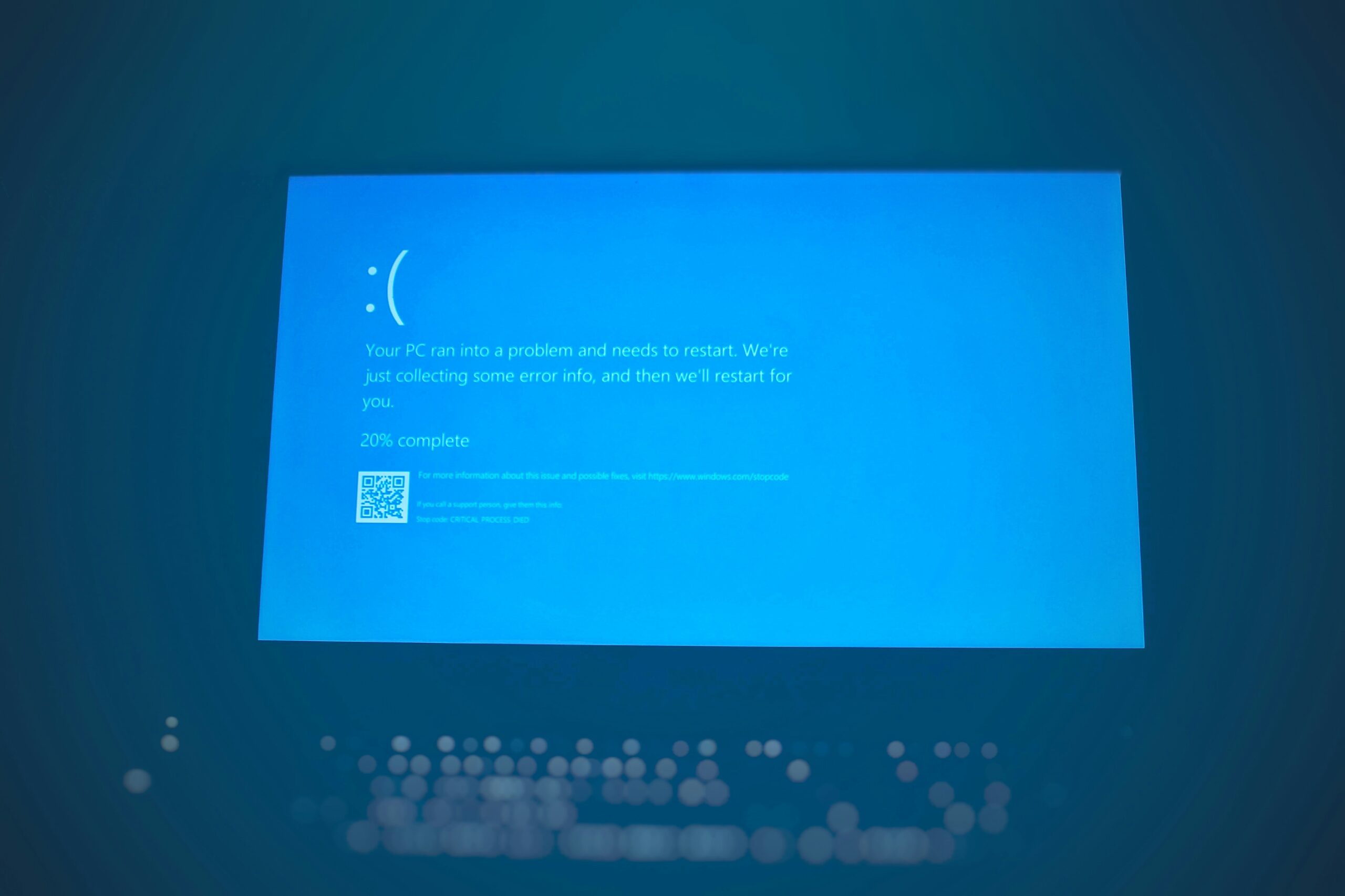
A slow startup process not only prolongs the time you waste waiting for the operating system to boot up but also signals about the state of your computer’s functioning. If Windows boots up slowly, it may imply that the OS has system issues, or some of its services and programs conflict with each other.
Fast Startup makes your computer more comfortable for everyday use
helps you enjoy the following benefits:
- Rapid access to personal data and applications;
- Elimination of extra stress from the system;
- Higher productivity due to reduced boot time;
- Efficient program installing process.
Moreover, a slow booting process can be a signal that something is going wrong, so it should be double-checked to prevent worse problems from occurring.
Understanding Why Windows Starts Slowly
Every time you power on your computer, a series of background processes begins before the desktop appears. If you’ve been searching for how to fix slow startup Windows, it’s important to know that the operating system checks hardware, loads device drivers, starts essential Windows services, launches security software, initializes connected devices, and opens startup applications during the boot process. A delay in any of these tasks can result in noticeably longer startup times.
If any part of this sequence becomes overloaded, startup speed suffers.
Common causes include:
| Cause | Effect on Startup |
| Too many startup applications | Longer loading time |
| Traditional hard drive (HDD) | Slow file access |
| Outdated drivers | Hardware initialization delays |
| Malware or unwanted software | Heavy background activity |
| Corrupted Windows system files | Boot errors and slow loading |
| Low available storage | Reduced system efficiency |
| Large Windows updates | Temporary slower startup |
| Aging hardware | Reduced overall performance |
Understanding which factor affects your computer makes troubleshooting much easier.
How to Fix Slow Startup Windows Step by Step
Disable Unnecessary Startup Programs
One of the most effective improvements comes from reducing the number of applications that launch automatically.
Many programs install startup entries without asking, including messaging apps, game launchers, cloud storage tools, and update utilities.
To review startup apps:
- Open Task Manager.
- Select the Startup Apps section.
- Review each application’s Startup Impact.
- Disable programs you don’t need immediately after boot.
Avoid disabling antivirus software or important hardware utilities unless you’re certain they aren’t required.
Many users discover that dozens of unnecessary programs were loading every time Windows started. Learning how to disable startup programs in Windows can further improve boot speed and overall system performance.
Restart Instead of Always Shutting Down
- Modern Windows operating systems have a function called Fast Startup that allows saving part of the OS upon shutdown.
- This can lead to a build-up of errors in the system.
- A restart will clear these errors, as it boots the system from scratch, unlike a regular shutdown.
- It is important to make a restart a habit in order to keep the system running smoothly upon starting.
Check Available Storage Space
Windows requires free disk space for temporary files, updates, and virtual memory.
If the system drive is nearly full, startup speed can decrease significantly.
Aim to keep at least 15–20% of your primary drive free.
Ways to recover storage include:
- Removing unused programs
- Deleting temporary files
- Emptying the Recycle Bin
- Moving large media files
- Cleaning Downloads folders
Storage maintenance often improves both startup speed and overall responsiveness.
Update Windows
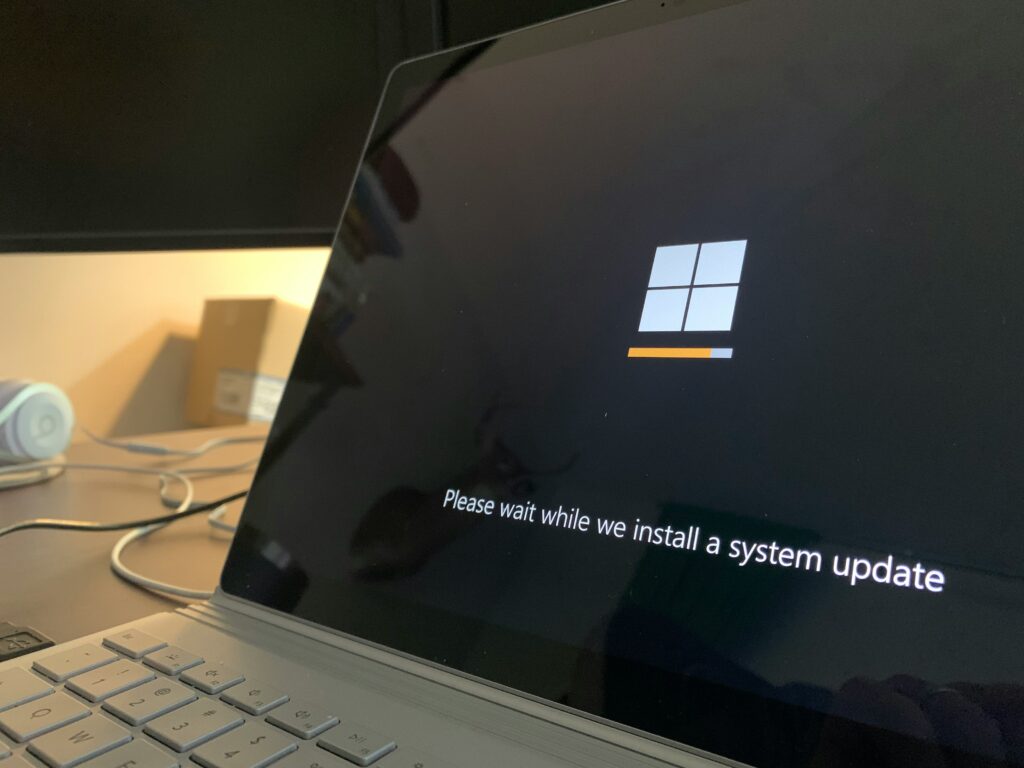
Performance improvements are often included in Windows updates.
The updates may be delayed, leaving compatibility issues unaddressed.
Open Windows Update and install:
- Security
- Drivers
- Improvements
- Performance
- updates
After major updates, the system may be slower than usual until the processes complete, and then it reboots. This should speed up after one or two reboots.
Update Hardware Drivers
Drivers allow Windows to communicate with hardware components.
Outdated drivers can delay startup while Windows attempts to initialize devices.
Pay particular attention to:
- Storage controller drivers
- Graphics drivers
- Chipset drivers
- Network adapters
- BIOS firmware (only when recommended by your manufacturer)
Updated drivers often resolve boot delays caused by hardware communication problems.
Examine Your Storage Drive
The type and health of your storage device greatly influence startup speed.
Hard Disk Drives (HDD)
Mechanical drives become slower with age due to physical wear and fragmentation.
Solid State Drives (SSD)
SSDs provide dramatically faster read speeds, allowing Windows to load much more quickly.
| Storage Type | Average Boot Performance |
| HDD | Slow |
| SATA SSD | Fast |
| NVMe SSD | Very Fast |
Among all hardware upgrades, switching from a conventional hard drive to an SSD typically delivers the greatest improvement in Windows startup speed. Understanding when to upgrade from HDD to SSD can help you achieve faster boot times and a more responsive Windows experience. Faster data access allows the operating system to load essential files more efficiently, helping your PC become ready for use in a fraction of the time.
Scan for Malware
Malicious software frequently runs automatically during startup.
Symptoms may include:
- Extremely long boot times
- High disk usage
- Unexpected pop-ups
- Unknown background processes
- Unexplained CPU activity
Run a full security scan using Windows Security or another trusted antivirus solution.
Removing unwanted software often restores normal startup behavior.
Repair Corrupted System Files
Damaged Windows files may slow down the start up process
Windows has some built in tools that can help
One example is the System File Checker and the Deployment Image Servicing and Management tool. These two utilities can help recover missing or corrupted operating system files. This can be helpful if there was a failed update or an unexpected shutdown..
Review Background Services
- Windows uses many services.
- Some software can install additional services to run when the computer starts.
- Check your installed applications and remove software you don’t need.
- Printer application,VPN’s, Utilities, and Trial applications that aren’t used can all add services to your startup.
- Fewer services means less of a delay when Windows boots up.
Optimize Power Settings
- Power settings influence startup performance.
- While energy-saving plans help reduce electricity usage, they may delay hardware initialization.
- Balanced mode usually provides the best compromise between efficiency and performance.
- For desktop systems focused on speed, higher-performance power plans may reduce startup delays slightly.
Keep Startup Clean Over Time
Many startup problems develop gradually.
Every newly installed application may add another background process.
Instead of fixing startup only after it becomes slow, perform regular maintenance.
Good habits include:
- Removing unused software
- Reviewing startup apps monthly
- Installing Windows updates
- Updating drivers periodically
- Running storage cleanup
- Restarting regularly
Preventive maintenance keeps startup performance consistent.
Common Mistakes That Make Startup Slower
Many users unintentionally create startup problems.
Some common examples include:
Installing Too Many Utility Programs
PC optimization suites often promise dramatic speed improvements but may actually increase startup time by adding their own background services.
Running Multiple Antivirus Programs
Using several security programs simultaneously creates unnecessary scanning during startup.
Choose one trusted security solution instead.
Ignoring Low Storage Warnings
Running Windows with almost no available storage impacts many system functions, including boot performance.
Never Restarting
Leaving the computer running continuously for weeks allows temporary processes to accumulate.
A simple restart often resolves minor startup delays.
Troubleshooting Persistent Slow Startup
If startup remains slow after basic optimization, investigate deeper causes.
Check Event Viewer
Windows records startup events that may identify driver failures or service delays.
Repeated warnings can reveal exactly which component slows the boot process.
Perform a Clean Boot
A clean boot starts Windows using only essential Microsoft services.
If startup becomes significantly faster afterward, one of the disabled third-party applications is likely responsible.
Re-enable services gradually until the problematic software is identified.
Test Hardware Health
Failing hardware often causes startup delays.
Check:
- SSD or HDD health
- RAM stability
- Cooling performance
- CPU temperatures
- Power supply reliability
Hardware diagnostics help distinguish software issues from physical component failures.
Practical Example
Imagine a five-year-old laptop taking nearly four minutes to reach the desktop.
After investigation, the following issues were identified:
- 23 startup applications
- Less than 5 GB free storage
- Outdated graphics driver
- Two unused cloud synchronization programs
- Large temporary file accumulation
After disabling unnecessary startup apps, freeing storage, updating drivers, and removing unused software, startup time dropped to under one minute.
This example demonstrates that multiple small improvements often produce a significant overall result.
Long-Term Performance Tips
Maintaining fast startup isn’t about applying one permanent fix.
Instead, focus on consistent maintenance.
Consider these long-term practices:
- Install software only when necessary.
- Uninstall applications you no longer use.
- Keep Windows updated.
- Replace aging hard drives with SSDs when practical.
- Avoid downloading unknown utilities promising instant performance improvements.
- Monitor startup applications after installing new software.
Small maintenance tasks performed regularly prevent performance from gradually declining.
Often Asked Questions
Why is my Windows startup suddenly slow?
Sudden slow startup is commonly caused by Windows updates, newly installed software, driver issues, malware, or failing storage devices. Reviewing recent changes usually helps identify the cause.
Does adding more RAM improve startup speed?
Additional RAM can improve overall responsiveness, especially when multitasking, but startup speed is more heavily influenced by storage performance and startup applications.
Is Fast Startup always beneficial?
While Fast Startup is intended to speed up the Windows boot process, it isn’t always beneficial in every situation. Following software updates, driver changes, or new hardware installations, it may interfere with the normal startup sequence and contribute to slower or inconsistent boot times.Restarting periodically helps avoid these problems.
Will reinstalling Windows fix slow startup?
A clean installation often resolves software-related startup problems by removing corrupted files, unnecessary programs, and configuration issues. However, it won’t fix failing hardware.
Is upgrading to an SSD worth it?
Yes. Replacing an older hard drive with a solid-state drive is one of the most effective upgrades for improving Windows startup speed and overall system performance.
Conclusion
Learning how to fix slow startup Windows starts with understanding that slow boot times are usually the result of several small issues rather than a single major problem.The reasons why the process of booting up can become slow are various, nonetheless, they are usually not critical. Many of them can be easily eliminated or solved by the user with minimal effort.
The tools for checking and adjusting the launch of the OS, which can be used for this purpose, will be discussed further. Moreover, a particular attention will be paid to the optimization of the boot process of Windows, which is a significant factor in the functioning of the operating system.
Understanding how to fix slow startup Windows begins with addressing the most common causes of delayed boot times. In most cases, startup performance can be improved by removing unnecessary startup programs, freeing up storage space, keeping Windows and device drivers up to date, scanning for malware, and performing regular system maintenance. If your computer still relies on a traditional hard drive, upgrading to a modern SSD is one of the most effective ways to achieve significantly faster startup and overall system performance.
In conclusion, learning how to fix slow startup Windows is not about relying on a single solution but adopting regular maintenance practices that keep your system running efficiently. Browse our Windows optimization and PC performance tips to discover more practical guides for improving speed, fixing common system issues, and maintaining long-term performance.
By managing startup programs, keeping Windows and drivers updated, maintaining adequate storage space, scanning for malware, and addressing potential hardware issues, you can significantly improve boot times and overall system performance. Taking these preventive steps helps ensure your PC remains fast, reliable, and responsive over the long term.